A DST is a stitch file
DST is a machine-oriented embroidery format. It stores a sequence of movements and commands. It is useful for handing a design to a compatible machine, but it is not the same as an editable design project with the original lettering recipe, source image, and Bézier shapes.
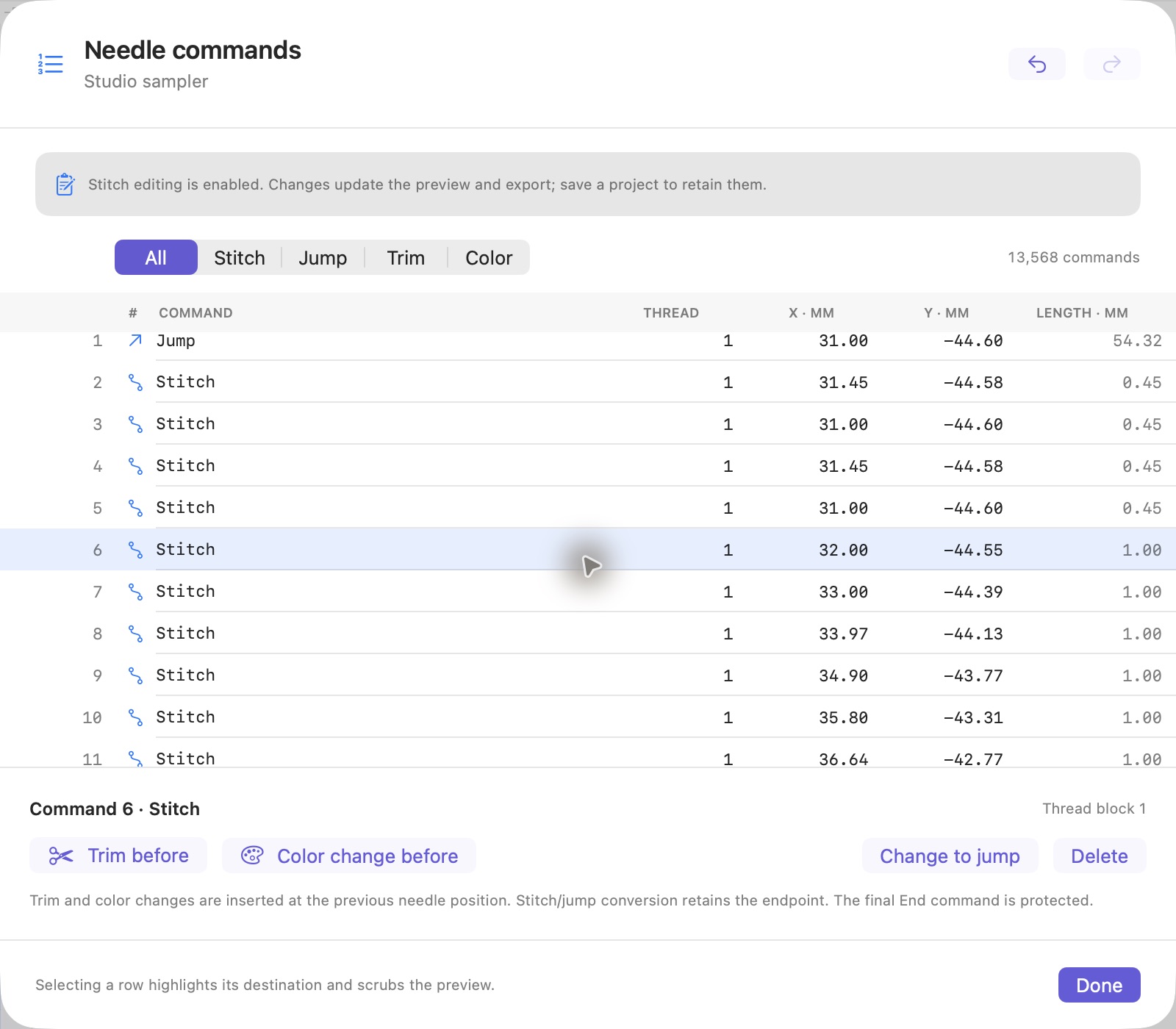
Opening a DST in Studio lets you inspect its needle commands. It does not recover the exact original font, recreate the original editable curves, or restore settings that were never stored in the DST. For work you plan to revise, keep the Studio project alongside the export.
What you can edit
- Individual needle points: inspect coordinates and adjust stitch positions.
- Stitches and jumps: review movement between areas and change the command type where needed.
- Trims and color changes: insert commands and examine their place in the sequence.
- Unwanted commands: remove selected commands with undo support.
- Sewing sequence: play, pause, scrub, and step through the plan to see how a design is constructed.
Trimming behavior can depend on how a machine interprets the exported command sequence. Check the machine’s settings and verify with a sample rather than relying only on the screen preview.
Choose outline editing or stitch editing deliberately
If a letter needs a different curve or a whole object needs new fill settings, use the source project’s outlines. If you are inspecting a specific needle movement, work at the stitch level. These are different forms of editing and should not silently overwrite one another.
Studio retains outline and stitch versions in a project. If you change the source outlines, it flags a stored stitch plan that no longer matches. Review which version you want to use before generating or exporting again. For new artwork, begin with the image-to-DST workflow.
Review size after editing
A design’s visible outline and its final needle movements are not always identical. Underlay, compensation, and other stitch settings can affect the output. Studio’s export review checks dimensions measured from the encoded DST, along with hoop fit, movement, and saved size limits.
For example, if the available width is 12 inches, setting the artwork to 11.9 inches gives a little room but is not itself proof of fit. Review the actual exported bounds and your machine’s usable area. Resizing a stitch-only file also changes the spacing and length of its existing stitches; a source project gives you more control over regenerating the plan.
Keep a useful production handoff
Save the DST, editable project, thread plan, and operator notes together. The thread plan matters because a standard DST color-change command does not by itself identify the intended thread brand or shade. Studio’s production package can include the editable project, thread list, report, and checksums.
Reopen the exported DST to inspect the result, then record a sew-out on the intended fabric. Software validation can identify file and movement problems; it cannot prove how thread, stabilizer, tension, and fabric will behave together.
Native editing on your Mac
Studio requires an Apple Silicon Mac running macOS 14 or later. Choose monthly access at $10 USD or a perpetual license. Internet access is needed for sign-in and activation; monthly access requires ongoing verification, while activated perpetual licenses work offline with eligible releases.
Explore the satin lettering guide or patch design guide for ways to improve the design before reaching individual stitch edits.
MAKE YOUR NEXT DESIGN
Bring the details into Studio.
Explore the actual Mac workspace, see the workflow, and choose the plan that fits your work.
Compare plans ↗