A real example: a cow-pattern patch
The brief: add a cow pattern to the background of a 4-inch AYKONS patch while keeping the lettering unchanged. The preview below comes from the actual exported project used for our test sew-out files. It is a digital outline preview, not a photograph of sewn embroidery.
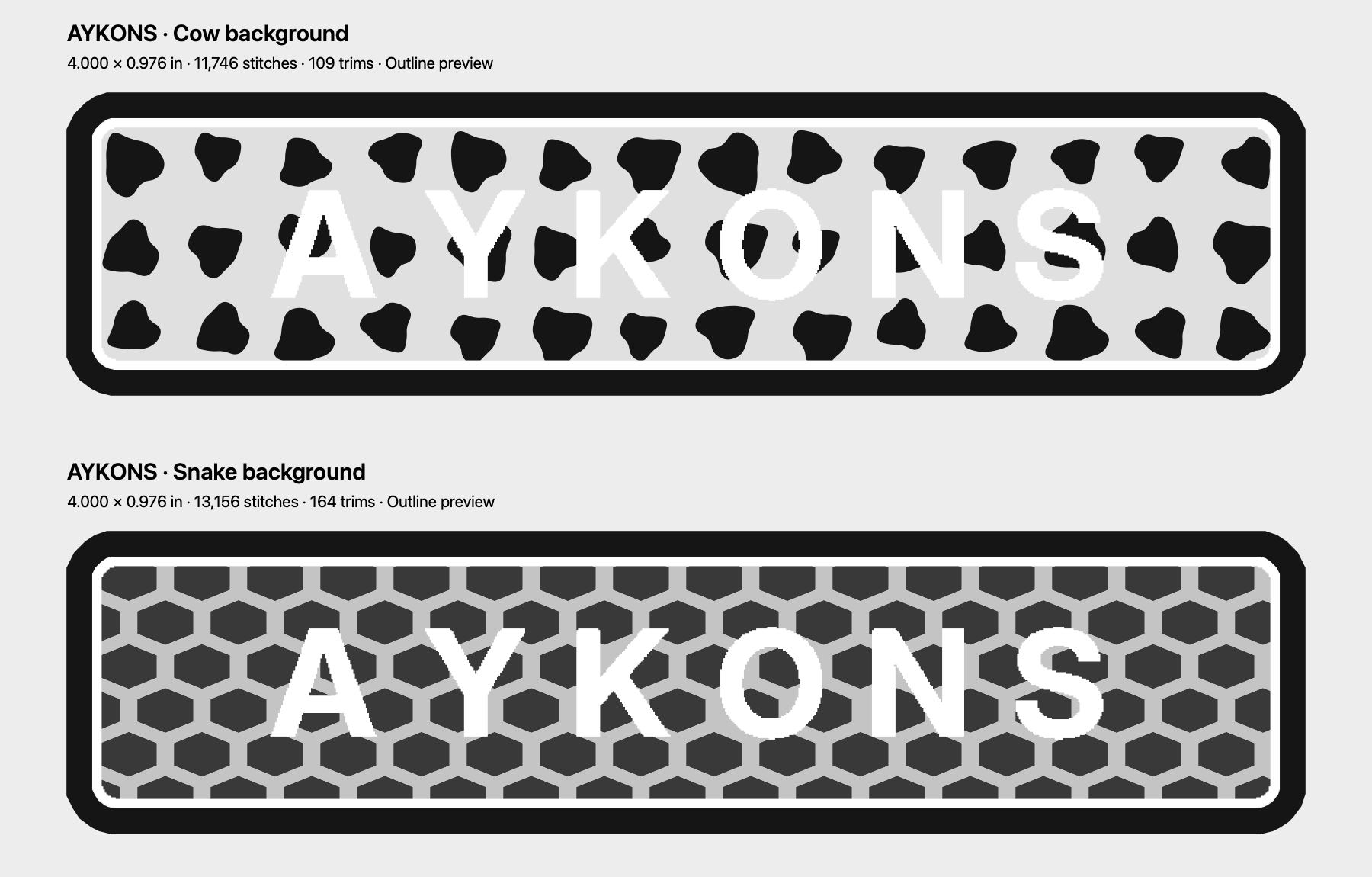
The pattern is part of the stitch design. It can be inspected and edited before DST export. These samples still require physical sew-out validation on the intended fabric.
Give AI a specific embroidery brief
Specify the target, the change, and what must stay the same. For example: “Apply a black-and-white cow pattern to the stitched background only. Keep all six letters and both borders unchanged. Keep the complete patch 4 inches wide.”
A background request and a lettering request are different edits. Check the affected objects in the returned variation, compare them with the original, and correct any mismatch before exporting. AI interpretation can need revision, especially for complex textures or ambiguous selections.
From an AI variation to a machine file
- Import and digitize the source artwork, or open an existing embroidery project.
- Describe the target region and constraints in Studio AI.
- Compare the variation with the original and review its editable objects.
- Inspect density diagnostics, travel, trims, small details, and fabric settings.
- Export DST with its thread guide and editable project, then sew a sample.
A DST contains needle commands rather than the complete original object structure. Start from an editable project when precise region-level changes matter. Learn more about editing an imported DST.
What runs locally, and what uses AI
Stitchistry is a native Mac editor. AI requests send your instructions and a reduced design preview to OpenAI through Stitchistry and require an internet connection. The returned design remains editable in Studio. AI is a beta feature with usage limits; it is not an unlimited artwork-generation service.
Pattern detail must fit the physical design. A texture that looks good on screen may create small stitches, frequent trims, or dense overlaps. Studio’s preview and diagnostics help you review those decisions; a physical sew-out is still the final check.
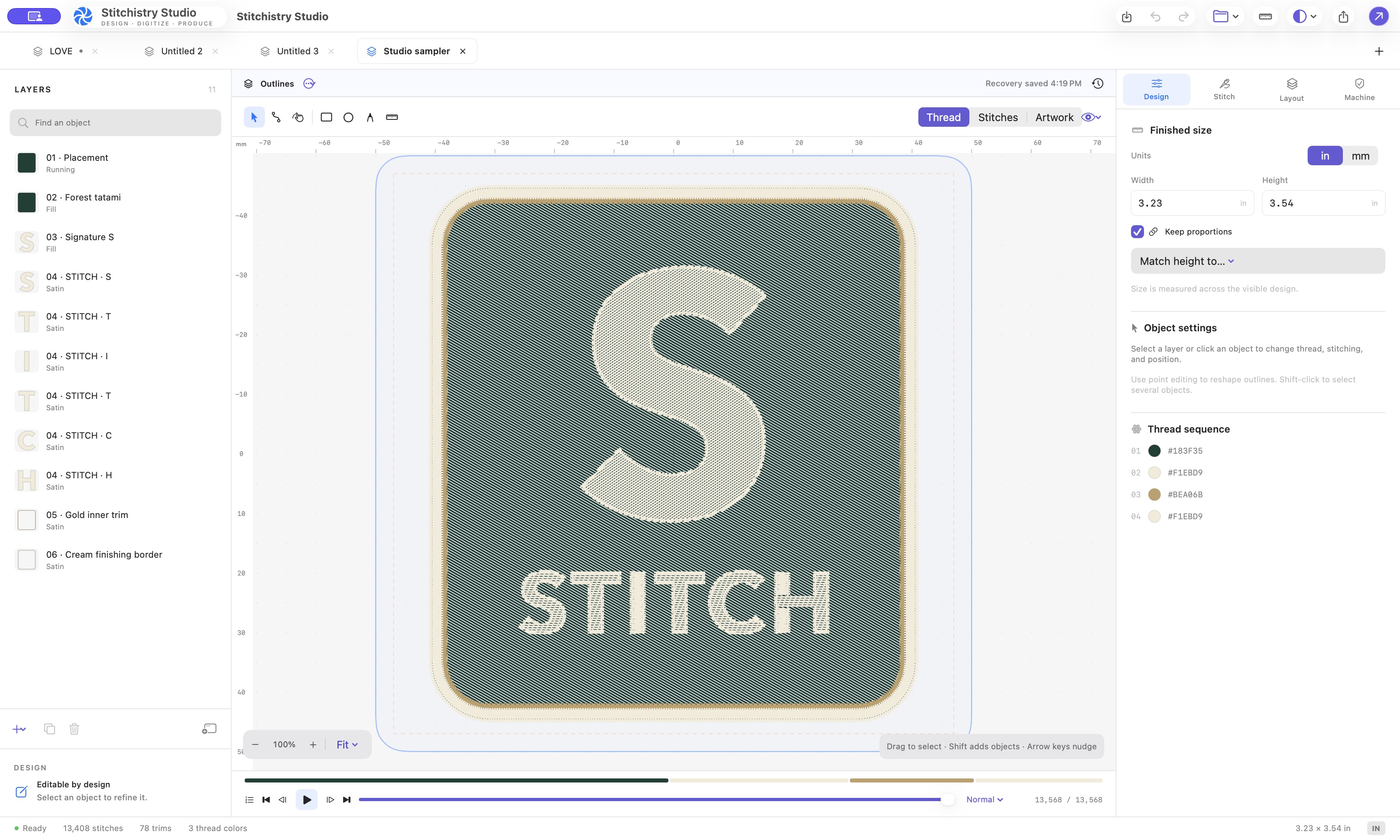
See the editing and export workflow
- 0:00 — Import and size. Trace PNG artwork and set a 2-inch outline width.
- 0:10 — Refine. Change fill direction, apply a cotton hoodie preset, and edit Bézier handles.
- 0:36 — Simulate. Follow the needle sequence before exporting.
- 0:52 — Export and reopen. Review machine warnings, export the DST package, and inspect the exported commands.
Start with the right plan
Studio runs on Apple Silicon with macOS 14 or later. The monthly plans start at $10 USD; a perpetual license is also available. There is no free trial. Review current plan details before purchasing, then sign in inside the app using an emailed code.
For your first design, follow the image-to-DST walkthrough and keep the original editable project.
MAKE YOUR NEXT DESIGN
Bring the details into Studio.
Explore the actual Mac workspace, see the workflow, and choose the plan that fits your work.
Compare plans ↗